Americans get hundreds of app alerts and email pings weekly. This constant stream is a major reason for losing focus at work and school.
Notification fatigue is when too many digital alerts make us tired and unfocused. It happens with Gmail, Slack, Microsoft Teams, mobile apps, and social media. With more people working from home, many in the U.S. deal with too much digital information every day.
This problem leads to less productivity, more stress, and trouble focusing. It makes tasks take longer to finish. Whether you’re a student, worker, or balancing family life, endless interruptions can mess up your plans.
This article will explain why it happens and how to stop it. We’ll look at work, social media, and personal messages that distract us. You’ll find tips to help you deal with too much information and stay focused. We aim to give you easy, effective advice to fight notification fatigue and clear the digital clutter.
Understanding Notification Fatigue
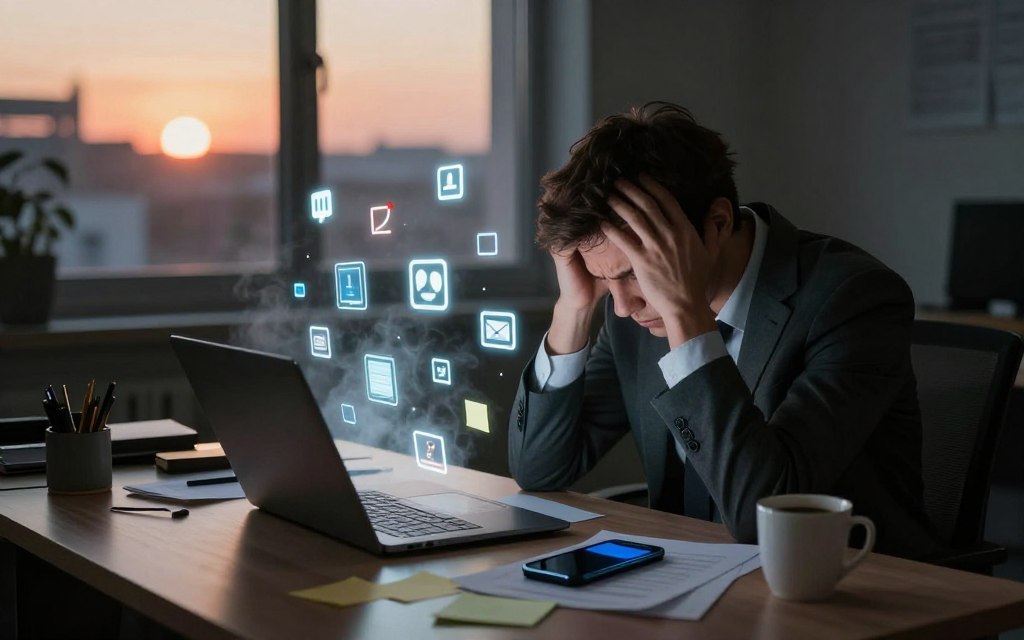
Notification fatigue is when too many alerts make us less focused. It drains our attention and makes simple tasks hard. This happens because we’re constantly switching between tasks.
It’s different from information overload, which is too much content. Email overload is about managing a lot of emails. Digital overwhelm is stress from using too much technology.
When we get interrupted a lot, our brain has to work harder. This makes it harder to make decisions and focus. It also shortens the time we can work without distractions.
Designs of apps and business goals play a big role. Social apps like Facebook and Instagram send alerts to keep users engaged. Email services like Gmail also send messages to keep users active.
Using many communication tools means more distractions. Tools like Slack and Asana add to the noise. Each one can pull our focus away from what we’re doing.
Defaults in apps can make things worse. Many apps send notifications by default, without asking. This makes us feel like we must respond right away, adding to our stress.
Social and work norms also play a part. Expectations to reply quickly can make us check our alerts all the time. Having devices everywhere makes it even harder to ignore these distractions.
The Impact on Productivity
Notification fatigue disrupts our work flow and shortens deep focus time. Small distractions add up. Each alert makes us switch tasks, costing time and accuracy.
Decreased Concentration
Research shows brief alerts make tasks take longer and increase errors. Important tasks like writing emails or studying get interrupted. This breaks our flow and takes extra time to get back.
Email overload makes things worse. Constantly checking emails takes away from important work. People who deal with many messages do less quality work each day.
Increased Stress Levels
Notifications can stress us out. They activate our stress system, raising heart rate and cortisol. This makes it harder to focus after each interruption.
Apps and messages that reward us make us check our devices compulsively. This anxious behavior increases our stress levels over time.
Effects on Mental Health
Too many interruptions can lead to burnout, sleep issues, and anxiety. Nighttime alerts can disrupt sleep. Daytime pressure to reply quickly harms our downtime and relationships.
High notification levels are linked to lower job satisfaction and more stress. These effects are seen in teams and families alike.
Identifying Your Notification Triggers
Start by noticing which pings pull you away from work and life. A short audit helps you spot patterns in notification triggers so you can act with less friction. Track alerts for a week and note the source, frequency, and how much they interrupt your focus.
Workplace channels often create the largest noise. Common sources include Slack channels, Microsoft Teams mentions, calendar alerts, task updates from Asana or Trello, long email threads, and enterprise platforms like Salesforce. Different roles face different needs: managers, customer support agents, and sales reps often require more immediate responses than many individual contributors.
To audit workplace notifications, list the apps and groups that ping you most. Track how often each alert appears and mark which are essential. That simple list reveals high-noise channels and nonessential groups you can mute or streamline.
Social platforms use design tricks to keep you checking. Typical social media alerts include likes, comments, shares, direct messages, story updates, and algorithmic prompts for reels or new posts. Apps rely on intermittent reinforcement and FOMO to drive quick returns to the feed.
Make an inventory of social media alerts by app and type. Note which notifications make you stop working or feel anxious. Prioritize muting algorithmic nudges while keeping message alerts from close contacts active.
Personal communication spans SMS, WhatsApp, iMessage, Facebook Messenger, family group chats, and transactional pushes from banks or delivery services. Some messages are urgent, such as caregiver notes or family emergencies. Others, like promotional texts and newsletters, are low priority.
Classify senders and threads into urgent, important, and optional. Use that classification to guide mobile notifications and set rules so only truly urgent messages break through during focused periods.
| Source | Typical Alerts | Noise Level | Action |
|---|---|---|---|
| Slack / Microsoft Teams | Mentions, channel messages, file shares | High for active channels | Mute nonessential channels; set Do Not Disturb for deep work |
| Email (Gmail, Outlook) | Thread replies, newsletters, calendar invites | Medium to high | Filter newsletters; schedule email-check windows |
| Task apps (Asana, Trello) | Task assignments, status updates, comments | Medium | Limit project alerts to critical tasks; review notification settings |
| Social apps (Instagram, Facebook) | Likes, comments, DMs, story alerts, reels prompts | High for social users | Turn off algorithmic prompts; keep direct messages if needed |
| Messaging (iMessage, WhatsApp) | One-to-one texts, group chats, media | Variable | Set critical contacts as priority; mute promotional threads |
| Transactional (Banks, Delivery) | Payment alerts, shipping updates | Low to medium | Enable only essential transactional mobile notifications |
Strategies to Combat Notification Fatigue
Too many notifications can make it hard to focus. Here are some ways to manage them better. These steps help you work deeply and sleep well by reducing distractions.
Prioritizing notifications
First, check every app and service on your devices. Only keep alerts for important people, apps, or channels. Use tags or stars for VIP contacts on iOS and Android.
In Slack and Microsoft Teams, mute channels you don’t need. Unsubscribe from emails that don’t interest you anymore.
Set rules for work apps to only get direct messages and mentions. Mute big group chats and use filters to sort emails. These steps make managing notifications easier and consistent.
Scheduling Do Not Disturb periods
Make time for focused work and sleep by using Do Not Disturb. It helps you stay on task and sleep better.
Set Do Not Disturb times on your devices for nights. Use Focus modes on iOS or Work and Bedtime profiles on Android for work blocks. Turn on Do Not Disturb on laptops during focused work times.
Pair DND with time-blocking: check emails and messages a few times a day. This avoids constant switching between tasks.
Utilizing built-in features
Discover native tools that make managing notifications simpler. Use iOS Focus modes, Android notification channels, and Gmail’s Priority Inbox. Outlook rules and Slack or Teams preferences also help.
Mute conversations and turn off push for social apps when not needed. Set quiet hours in WhatsApp and Facebook Messenger. Use delivery summaries to get updates in groups.
Sync settings across devices to avoid getting the same alerts everywhere.
Embracing Mindfulness Techniques
Mindful habits help us focus better and reduce stress from constant notifications. This guide offers simple steps for focused attention, breathing exercises, and setting boundaries. Each tip is easy to try during a busy day.
Practicing Focused Attention
Focused-attention practices help the brain ignore distractions. Try single-tasking and the Pomodoro technique to improve focus. Start with short intervals of 25–50 minutes and increase them as you get better.
Clear your workspace and keep your phone away when working. Use apps like Forest or Focus@Will to help you concentrate. But turn off nonessential alerts first to avoid distractions. Keep your focus sessions simple and consistent for steady progress.
Breathing Exercises
Breathing exercises calm the nervous system and bring back clarity after interruptions. Deep breathing and box breathing lower stress and anxiety caused by distractions.
Try a 4-4-4 box-breathing cycle: inhale for four, hold for four, exhale for four. For diaphragmatic breathing, use 4-6-8 counts to slow your heart rate and regain focus. Take a short pause before replying to messages to avoid quick reactions.
Setting Boundaries
Clear rules change how others see you. Define when you’ll respond and which channels are for urgent matters. Stick to these rules so others know when to reach out.
Use simple templates to announce your focus hours. For urgent issues, ask teams to prefix subject lines with URGENT or call for immediate matters. Being consistent helps avoid feeling overwhelmed by notifications.
| Practice | What to Do | Tip |
|---|---|---|
| Focused Sessions | Use 25–50 minute single-task intervals | Hide phone; use Forest or Focus@Will after silencing alerts |
| Pomodoro | Work 25, break 5; repeat 4 cycles then longer break | Track progress to build attention stamina |
| Box Breathing | Inhale 4, hold 4, exhale 4 | Do after interruptions to lower stress |
| Diaphragmatic Breathing | Inhale 4, hold 6, exhale 8 | Use before responding to avoid reactive replies |
| Boundary Scripts | Announce focus hours and emergency protocols | Ask teams to use URGENT prefix or phone calls for true emergencies |
| Notification Hygiene | Remove unnecessary alerts and set clear rules | Consistent enforcement reduces feeling of being always on |
Leveraging Technology Wisely
Using tools smartly can cut down on distractions and help you focus better. By managing notifications and tweaking your device settings, you control when you get alerts. Here are some steps to make technology help you stay focused, not distract you.
Notification Management Apps
Third-party apps can block distracting apps and track your screen time. Apps like Freedom, RescueTime, StayFocusd, and Moment let you block apps and set focus times. They also give you insights into where your time goes and which apps are the biggest distractions.
Choose apps that fit your privacy needs and work on your devices. Make sure they’re compatible with Windows, macOS, iOS, and Android. Also, check if they’re okay with your company’s IT rules before using them on work devices. It’s helpful to control notifications across all your devices.
Customizing Device Settings
Device settings can stop duplicate alerts and let you focus on what’s really important. On Android, use notification channels to silence certain types of alerts from an app. On iOS, set up Notification Summary and Focus to group nonurgent updates into scheduled digests.
Wearables should show fewer notifications or only critical alerts. Make sure Apple Watch and Wear OS don’t repeat phone notifications during work blocks. For email, use snooze, scheduled send, smart inboxes, and set push to manual when you don’t need updates right away.
Keep your settings the same across apps and system preferences to avoid constant interruptions. Check your notification rules and app reports regularly to improve your strategy.
Cultivating Healthy Habits
Small daily choices can greatly impact our focus and energy. Adopting healthy habits can help break cycles of distraction. It also lowers stress from constant notifications. Use practical routines to steady your attention and protect your mental space.
Regular Breaks from Screens
Regular breaks for your eyes and brain can prevent eye strain and mental fatigue. Try the 20-20-20 rule: every 20 minutes, look at something 20 feet away for 20 seconds. Also, take a longer break every 60–90 minutes to stretch, hydrate, or step outside.
Schedule screen-free meals and short walking breaks to interrupt compulsive checking behaviors. Use simple timers or apps like Forest or the built-in Focus modes on iPhone and Android to prompt breaks. This helps avoid notification overwhelm.
Engaging in Offline Activities
Replace some screen time with offline activities to boost creativity and calm. Choose activities like walking, strength training, reading print books, gardening, cooking, or drawing. These activities encourage deeper relaxation and reduce digital addiction.
Set device-free zones such as the bedroom or dining table. Plan tech-free evenings or weekend windows and designate a regular digital detox. These steps help reduce notifications and support maintaining healthy habits.
| Habit | Action | Benefit |
|---|---|---|
| 20-20-20 Rule | Every 20 minutes look 20 feet away for 20 seconds | Less eye strain, improved focus |
| Timed Breaks | Set alarms for 60–90 minute longer breaks | Reduced mental fatigue, better productivity |
| Screen-free Meals | Leave devices out of mealtimes | Improved social connection, mindful eating |
| Device-free Zones | Ban phones in bedroom or at the dining table | Better sleep, clearer boundaries |
| Offline Hobbies | Walking, reading print books, gardening, cooking, art | Enhanced creativity, reduced anxiety |
| Notification Control | Turn off nonessential alerts and batch check messages | Fewer interruptions, avoiding notification overwhelm |
The Role of Employers in Mitigating Fatigue
Employers play a big role in how we focus at work. They can make the workplace quieter and give us time for deep work. This helps our wellbeing.
First, check how we communicate at work. See which ways interrupt us the most. Then, make rules to cut down on these distractions.
Promoting a Healthy Work Environment
Make rules like no-meeting days and updates that don’t interrupt. Teach everyone to not expect answers right away outside work hours.
Look at what Microsoft and Slack did. They tested days without meetings and focus time. These tests showed better focus and happiness when leaders support these breaks.
Offering Flexible Communication Options
Let workers control their alerts in work tools. Teach them how to use Slack and Teams to manage distractions.
Leaders should show good habits by not always responding right away. They should also decide what’s really urgent. For teams that work all the time, like IT or healthcare, make plans for who gets alerts when.
| Action | What to Change | Expected Benefit |
|---|---|---|
| Audit communication | Map channels, meeting frequency, group messages | Identify high-interruption sources for targeted cuts |
| No-meeting blocks | Set predictable focus windows in calendars | Increase uninterrupted work time and output |
| Email etiquette | Set off-hours reply expectations and subject-tagging | Reduce after-hours stress and clarify priorities |
| Personalized alerts | Allow custom notification preferences in apps | Lower alert fatigue through tailored settings |
| On-call protocols | Define rotations, escalation paths, and alert recipients | Limit who receives alerts and when, reducing disruptions |
Looking Ahead: Creating a Balanced Notification System
As devices and apps get smarter, we’ll see better notification systems. AI and machine learning will help sort messages based on who sent them and when. You’ll get fewer interruptions from apps like Slack and Meta.
Privacy and ethics will guide these changes. Users will have clear controls and know how their data is used. Feedback from users is key for companies like Apple and Google to improve notifications.
Workplaces need to listen to their teams to manage notifications better. Surveys and open talks help set rules for less distraction. Small steps can make a big difference in staying focused.
Try a personal notification audit and make two changes, like setting Do Not Disturb times. See how it affects your focus and stress. With your input and updates from platforms, we can achieve a better notification system.