73% of professionals waste up to an hour daily searching for digital files. This lost time could be used for projects or sales.
This guide helps freelancers, small business owners, students, and knowledge workers in the U.S. build a digital system that works.
Most people spread their files, emails, and notes across different platforms. This mess hurts productivity and creates digital clutter.
In the next sections, you’ll find a clear plan to organize digital files. You’ll learn to choose the right tools, create consistent structures, and set routines that last.
We’ll share tips on managing digital files, backing them up, and measuring success. You’ll see how to save time, reduce duplicates, and ensure regular backups.
Follow this roadmap to take back your time, lower stress, and make your devices work for you.
Understanding Digital Organization Systems
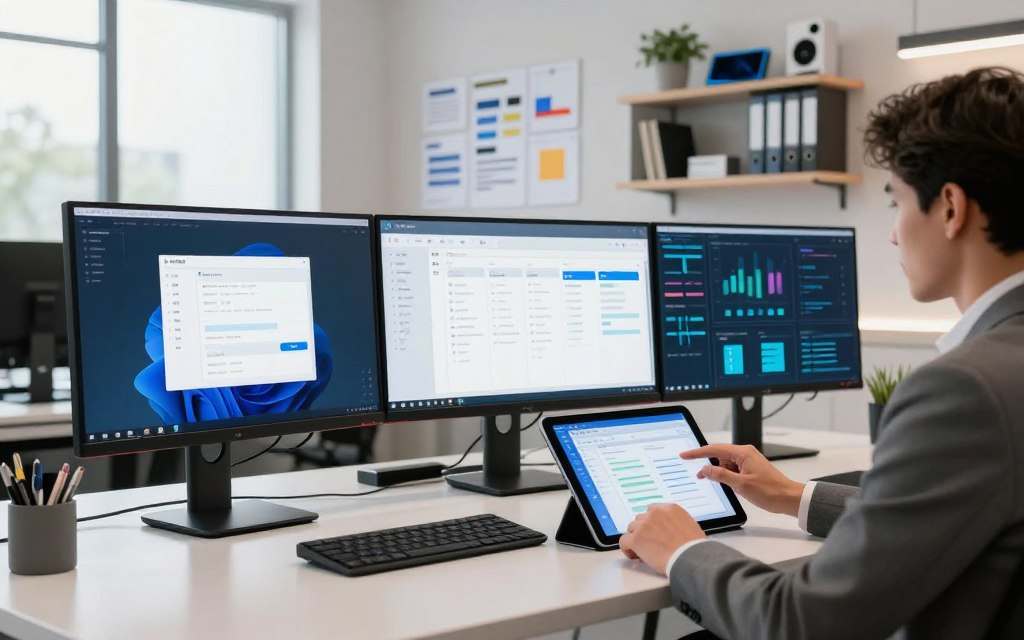
A good digital organization system makes work easier. It’s a set of rules and tools for managing digital info. This includes files, emails, and more, making it easy to find what you need.
What is a Digital Organization System?
A digital organization system tells you where things are and how to find them. It’s a guide for storage, naming, and access. This way, everyone knows where to look.
Key Components of Digital Organization
Choosing where to store your files is key. Cloud services like Google Drive and local drives are options. They form a strong storage base.
Next, organizing files is crucial. Use folders, names, tags, and metadata to keep things in order. This makes searching easy.
Keeping data safe is important. Use permissions and sharing rules to control access. This prevents unauthorized access.
Workflows tie everything together. Tools like Zapier automate tasks. Project platforms like Asana help keep tasks and files in sync.
Backup and security are essential. Use tools like Backblaze for backups. Encryption and two-factor authentication protect your data.
Rules are needed to keep things organized. Policies for keeping and deleting files help maintain order. This keeps your system running smoothly.
Benefits of Digital Organization Systems
Teams save time with a good system. They can find files quickly and complete tasks faster. This also means fewer duplicates and lower costs.
Organization helps with teamwork. It reduces conflicts and makes working together easier. Freelancers can use tools like Notion to stay organized.
Following rules improves security and compliance. This reduces risks and makes audits easier. It keeps your data safe and in order.
A clear system reduces stress. It makes finding files easy. This lets individuals and small teams focus on their work, not searching.
Good file management boosts productivity. It helps tools work better and speeds up getting ideas into action. This leads to smoother work and clear records.
Identifying Your Needs
Begin by making a detailed list of where your data is stored. Look at your email, Google Drive, OneDrive, and local folders. Also, check apps like Evernote or Apple Notes, and tools like Asana or Trello. This gives you a clear picture of your digital space.
Next, count the types and amount of files you have. This includes documents, images, videos, spreadsheets, code, and PDFs. Use tools like Google Drive and OneDrive to analyze storage. Finders for duplicates and email filters help you see how much you need to organize.
Assessing Your Current Organization System
Identify where you have duplicates and silos. Find out if the same file is in multiple places. Note how often you search for something and how long it takes.
Use simple tools to measure your space. Reports show big folders, finders show duplicates, and email filters show labels and volume. This helps you see your digital organization clearly.
Recognizing Areas for Improvement
Look for signs of disorganization. A big inbox, folders with confusing names, or slow onboarding are red flags. Also, check for backups and access controls.
Focus on issues that waste time or pose risks. This includes lost documents or missed deadlines. Consider legal needs like HIPAA or client privacy when judging importance. These will guide your decluttering efforts.
Setting Clear Goals for Organization
Set SMART goals to guide your efforts. For example, aim to find files 50% faster in 60 days. Or, choose to use one cloud platform. Having clear goals helps you track your progress.
Decide how wide your scope will be. Will you organize for one person or the whole team? Will you do it all at once or in phases? Define what success looks like, like fewer duplicates or faster searches.
Record your current state before you start. This way, you can see the difference your efforts make.
Choosing the Right Tools
Choosing the right apps is key to organizing digital files smoothly. Start by making a list of must-have features. Then, test a few options and think about the long-term costs. A focused pilot can show you any gaps before you scale up to the whole team.
Cloud storage like Google Drive, Microsoft OneDrive, and Dropbox is essential for digital file management. Note-taking apps such as Notion, Evernote, and Microsoft OneNote help store ideas and context. For task management, Asana, Trello, Monday.com, and ClickUp are great for team work.
Gmail, Outlook, Apple Mail, and Google Calendar keep communication and scheduling in line with files. Backups with Backblaze, Carbonite, or Acronis protect against data loss. Zapier, Make, and IFTTT automate tasks by connecting apps.
Features to look for in digital tools
Look for apps that work on Windows, macOS, iOS, and Android. Good search features and version history reduce risks. Tagging and metadata support help sort files flexibly. Granular sharing and permission controls protect sensitive data.
APIs or integration ecosystems extend app functionality. Offline access and conflict resolution are crucial for collaboration. For larger organizations, SSO, admin controls, and audit logs are important.
Cost considerations
Free tiers are good for solo work but may lack features for teams. For teams, calculate the cost per user and total cost of ownership. Hidden costs like migration, training, and storage fees can add up. Solo users often use Notion with Google Drive to save money.
Teams in Microsoft ecosystems benefit from OneDrive, SharePoint, and Teams integration.
Decision process
Test tools with a small group before full adoption. Check if you can easily move data to other platforms. Review security and compliance certifications like SOC 2 or ISO 27001. Use pilots to see how tools affect your daily work and organization system.
- List essential features required for your workflows.
- Run a short pilot with representative users.
- Compare total costs, including training and migration.
- Verify export paths and security certifications.
- Choose the stack that helps you organize digital files reliably.
Designing Your Digital Structure
Start with simple rules for organizing your digital files. Choose a top-level structure that fits your team’s way of thinking. This could be by client, project, department, year, or function. Keep your hierarchies shallow for quick file access.
Use a master index in Notion or SharePoint to help others understand the layout.
Creating a Logical File Hierarchy
Use predictable folder names like /Clients/ClientName/ProjectName/Deliverables or /Company/Finance/2026/Invoices. Stick to three or four levels to avoid deep nesting. Offer templates for common projects to keep folders consistent.
Naming Conventions for Files and Folders
Standardize file and folder names with formats like YYYY-MM-DD_description_version_author. For example, 2026-06-09_ProjectProposal_v1_Smith.pdf. Avoid special characters and spaces; use hyphens or underscores instead.
Create a naming glossary for your team to follow.
Setting Up a Consistent Tagging System
Combine folder hierarchy with tags for faster search and decluttering. Use tags for status, confidentiality, and department. Enable metadata fields in SharePoint or Google Drive to capture key attributes.
Decide who can add or edit tags to avoid chaos. Limit tag options to a controlled list and document it in a style guide. Include retention and archival tags for automatic cleanup later.
Keep the system visible. Share the style guide and folder templates with your team and update them as needed. Small, consistent habits help maintain effective digital file management over time.
Implementing Your System
Starting a digital organization system needs planning and clear steps. Begin with a simple plan that outlines tools, migration steps, and timelines. Also, assign responsibilities and back up your data before making changes.
Step-by-Step Guide to Implementation
Start by testing the system with a small team or a few files. This helps you check if the naming rules and workflows work. Use tools to check for data integrity during migration.
Then, move files to the new system and check everything works right. This includes permissions, links, and version history.
Make a detailed plan for the rollout. Include a launch date, who to contact for help, and what to do if things go wrong. Explain the changes clearly so everyone knows what’s happening. Celebrate small victories to keep everyone motivated.
Training Yourself and Your Team
Give short, focused training sessions. Use videos, step-by-step guides, and quick reference cards. These should show how to save files and use naming conventions.
Choose a few super-users to help others. Their support speeds up adoption and answers questions. Encourage feedback to improve training materials.
Establishing a Digital Routine
Make daily habits to keep your digital files organized. Sort your inbox, save files in the right folders, and tag items right away. Use reminders for tasks and automate file routing when you can.
Set aside time each week to clean up files and check for duplicates. Also, review your system monthly and quarterly to keep it running smoothly.
Use tools to automate tasks and create templates. Ask for feedback often to make your system better over time.
Integrating with Other Platforms
Connecting your core apps makes work more meaningful. It keeps your digital system organized. Small automations and clear links between email, cloud storage, and project tools save time. They also reduce duplicated effort.
Connecting email and calendar
Save attachments directly to Google Drive or OneDrive instead of leaving them in your inbox. Use Gmail labels or Outlook folders and Quick Steps to route messages into project folders as they arrive.
Turn emails into tasks or calendar events with Gmail Tasks, Outlook Tasks, or an automation platform like Zapier. Archive older messages into dated folders and rely on search operators to find items fast.
Utilizing cloud storage solutions
Use native sync clients for offline access and enable selective sync to limit local storage usage. Set up Google Shared Drives or OneDrive shared libraries for team assets so permissions stay consistent.
Apply shortcuts in Google Drive, metadata in SharePoint, and collaborative notes in Dropbox Paper to keep content linked to work. Good naming and a single permission model reduce duplication and confusion.
Synchronizing with project management tools
Link files to Asana tasks, Trello cards, Notion pages, or ClickUp projects so context stays with work items. Use integrations or APIs to auto-create project folders and attach templates when a new project starts.
Employ automation services like Zapier or Make to sync due dates, comments, and file updates across platforms. Choose one canonical source of truth for documents to prevent version drift.
Here is a compact comparison to help choose integrations based on common needs.
| Integration Need | Recommended Tool | Primary Benefit |
|---|---|---|
| Email to cloud | Gmail + Google Drive, Outlook + OneDrive | Automatic attachment saving and centralized digital file management |
| Calendar to notes | Google Calendar → Google Docs, Outlook → OneNote | Meeting notes stored with project materials for easy reference |
| Project sync | Asana, Trello, ClickUp with cloud links | Tasks and files stay connected to projects for clear ownership |
| Cross-platform automation | Zapier, Make | Automate folder creation, due-date updates, and task creation |
| Team collaboration | Google Shared Drives, OneDrive shared libraries, Dropbox Paper | Consistent permissions and shared editing to support digital productivity tools |
Maintaining Your Digital Organization
Keeping your digital space organized is all about small, regular steps. A consistent routine helps avoid clutter, saves time, and keeps everyone on the same page. Use simple rules that match your workflow and tools like Google Drive, Dropbox, or Microsoft OneDrive.
Best Practices for Regular Updates
Use the one-touch rule for new files: decide right away to file, tag, or delete them. This habit helps keep your digital space tidy and improves how you manage files.
Set clear rules for keeping or deleting files. Archive old projects after a year to avoid storage problems. Use scripts, email rules, or cloud settings to automate cleaning up.
Keep an eye on how much storage you’re using. Use reports to spot and plan for storage needs before they become a problem.
Developing a Review Schedule
Do a quick clean every week to clear downloads, attachments, and new files. This keeps your work area organized and makes digital decluttering easier.
Do a deeper review every month to find and remove duplicates, old files, and back up important data. Use a checklist to make it faster.
Have a quarterly check to review permissions, folder structure, and update documents. Once a year, do a big clean-out and move old files to long-term storage.
Adjusting as Needs Change
Ask for feedback to find out what’s not working in your digital system. Look at search patterns and unused folders to see where you need to focus.
Update naming and tags when search habits change. Plan for future growth by migrating data early to keep your system running smoothly.
Make sure someone is in charge of keeping things organized. Keep your rules and processes up to date so everyone knows what to do.
Overcoming Common Challenges
Keeping a clean digital workspace is a big task. Small habits can help a lot. They reduce stress and keep teams working well. Here are some tips for a digital organization system that works for everyone.
Dealing with digital clutter
- Empty the Downloads folder and tidy the desktop weekly. Create rules in browsers and email clients to route files into the right folders automatically.
- Use duplicate-finder tools like Duplicate Cleaner or Gemini to remove redundant files in bulk. Archive older projects to an archive drive or cloud storage to cut active clutter.
- Limit storage platforms to two or three trusted services, such as Google Drive and Dropbox, to prevent sprawl. Set retention rules and automation to remove files after the retention period ends.
Avoiding information overload
- Unsubscribe from unnecessary email lists and use filters and labels in Gmail or Outlook to surface only critical messages.
- Build focused dashboards in Notion or Trello that show active projects only. Link tasks to a single-source document so teams know where to find the latest version.
- Break big projects into small, actionable tasks. Turn off nonessential notifications and mute channels that distract from priority work.
Managing transition pains
- Plan phased migrations with rollback options for key files. Keep legacy access for a grace period while people adapt to the new digital organization system.
- Expect resistance and address it with clear communication, hands-on training, and examples showing time saved by the new approach.
- Offer incentives and highlight wins like fewer errors or faster search times to boost adoption of digital productivity tools.
Troubleshooting tips
- Recover lost files using version history and recovery features offered by providers such as Google Drive or Microsoft OneDrive.
- Resolve permission conflicts with a simple permission matrix. Train document owners to review sharing settings before broad distribution.
- If searches fail, re-index folders or run metadata checks so you can quickly organize digital files and restore access.
| Challenge | Quick Fix | Tool Examples |
|---|---|---|
| Downloads and desktop clutter | Automate routing and schedule weekly cleanups | Browser rules, Hazel, Windows Storage Sense |
| Duplicate and redundant files | Run duplicate scans and archive old projects | Gemini, Duplicate Cleaner, Google Drive archive |
| Information overload | Use filters, focused dashboards, and task breakdowns | Gmail filters, Notion, Trello |
| Resistance to change | Phase migrations, train users, show clear benefits | Workshops, Loom tutorials, internal champions |
| Permission and access errors | Create a permission matrix and owner checks | OneDrive sharing settings, Google Workspace Admin |
Collaborating with Others
Working with teammates and partners is easier when you have a clear plan for sharing files. A good digital organization system keeps everything in its place. This way, people can focus on their work, not searching for files.
Sharing Files and Folders
Use shared drives or team folders for long-term projects. This avoids duplicate files and helps manage them better. Instead of sending attachments, share links to keep the file in one place.
For outside partners, share links with expiration dates. Decide who can view, comment, or edit based on their role. Limit downloads and track access for sensitive files.
Using Collaborative Tools Effectively
Pick tools that fit your work style. Google Docs and Microsoft 365 are great for real-time editing. Dropbox Paper and Miro are good for visual projects. Make sure to link these files to your digital system so they’re easy to find.
Use @mentions and assign tasks to keep projects moving. Combine project tools like Asana or Trello with file links to track progress. Templates help new people get up to speed quickly.
Setting Up Permissions and Access
Use role-based access controls like viewers, commenters, and editors. Regularly check permissions to avoid giving too much access. For secret information, set stricter rules and keep audit logs.
Secure accounts with single sign-on and multi-factor authentication. Make a simple way for people to ask for access. Give a quick guide on where to find files and how to collaborate.
Staying Secure and Protected
Starting a strong digital organization means taking steps to protect your files and privacy. Small habits can make a big difference. Regular checks help avoid big problems.
Implementing data backup solutions
Follow the 3-2-1 rule: have three copies of important data on two different media, with one off-site. Use cloud backup services like Backblaze or Carbonite. Also, keep encrypted local backups on an external drive or NAS.
Turn on version history in Google Drive, OneDrive, or Dropbox. This helps recover from accidental deletions or ransomware.
Test restores regularly to ensure backups work. Have an automated check schedule and a clear restore plan. This way, your digital files can be quickly recovered after an incident.
Understanding privacy settings
Review sharing permissions and access logs for sensitive folders. Limit sharing to only those who need it. Remove old permissions. Use encryption tools like VeraCrypt, BitLocker, or FileVault for sensitive files.
Check app permissions for cloud accounts and review vendor privacy policies. Look for certifications like SOC 2 or ISO 27001. Good privacy practices are key to digital security and organization.
Recognizing potential threats
Watch out for phishing, ransomware, credential theft, and accidental data exposure. Train everyone to spot phishing and use multi-factor authentication.
Keep software and apps updated to close security gaps. Monitor for unusual account activity and set alerts for suspicious file-sharing. Lock down compromised credentials to protect your digital files.
Incident response essentials
Have a plan for responding to incidents. List steps to isolate systems and restore from backups. Keep a list of key contacts like IT support and legal advisors.
Run tabletop exercises and post-incident reviews. This improves your data backup and recovery over time. Your digital organization system will stay reliable.
| Area | Recommended Action | Tools or Examples |
|---|---|---|
| Backup Strategy | 3-2-1 rule with automated cloud and local encrypted backups; test restores | Backblaze, Carbonite, Encrypted NAS |
| Versioning | Enable file version history to recover prior states after corruption | Google Drive, OneDrive, Dropbox |
| Encryption | Encrypt sensitive files and devices before sharing or storing off-site | VeraCrypt, BitLocker, FileVault |
| Access Control | Audit permissions regularly; revoke unused access | Cloud access logs, IAM settings |
| Threat Prevention | Employee training, MFA, patch management | Security awareness platforms, Authenticator apps |
| Incident Response | Documented plan with contacts; practice restores and drills | IT support roster, cloud vendor support lines, legal contacts |
Measuring Success
Start by setting clear goals to see how well your digital system works. Choose metrics that match your daily tasks, like how fast you find files or if backups work right.
Key Performance Indicators
Track how fast you find things to see if your system speeds up work. Check if people find the right documents often. Also, watch how much storage you use to cut costs and reduce duplicates.
Follow how often the team uses the system and if they follow naming rules. Check if backups work well and if you reduce inbox clutter and attachments.
Gathering Feedback
Use short surveys and quick chats to find out what’s hard to use. Look at support tickets for common problems. Use data from Google Drive, SharePoint, or Notion to see how things really work.
Combine what people say with data from your tools to find what’s working and what’s not.
Adjusting Goals
Check your KPIs every month or quarter and compare them to your starting points. Change folder structures and naming rules if needed. Update your goals to reflect growth and plan for more improvements.
Share dashboards that show how much time and money you save, and how well the team uses the system. This keeps everyone interested and involved.
| Metric | What to Measure | Target | Action if Off-Target |
|---|---|---|---|
| Time-to-find | Average minutes to locate a file | Under 2 minutes | Refine folder hierarchy and tagging |
| Search success rate | Percent of searches that find the needed document | 90%+ | Improve naming conventions and index settings |
| Storage efficiency | Reduction in duplicates and storage costs | 20% reduction in redundant files | Run de-duplication and archiving routines |
| Adoption rate | Percent of team following the system | 75%+ active users | Provide targeted training and incentives |
| Backup & recovery | Successful backup frequency and recovery time | Daily backups, recovery within 1 hour | Fix backup schedules and test restores |
| Inbox & attachments | Average inbox size and unmanaged attachments | 30% reduction | Enforce attachment policies and use digital file management |
Future-Proofing Your Digital Organization
Make your digital organization strong by choosing smart tools and setting clear rules. Start with simple folders and tags that grow with your projects and team. Use platforms like Google Workspace or Microsoft 365 for their admin controls and export options.
Trends in digital organization systems
AI is changing how teams find work. Tools like Microsoft Copilot and Google Workspace AI help summarize files and suggest where to put them. This saves time on manual cleaning up.
Unified workspaces like Notion and ClickUp bring together documents, chat, and projects. Automation tools like Zapier make routine tasks easier.
Planning for scalability
Design templates and automation for easy onboarding of new projects or users. Set aside money for training, extra storage, and migrations. This way, your system can grow smoothly.
Standardize naming, tags, and permissions to make scaling predictable and secure.
Embracing new technologies
Try out AI tools to cut down on manual tagging and find important content. Look into semantic search and knowledge graphs for better document and media discovery. Keep a culture of regular reviews to adopt new tech wisely.